1Log it in seconds
A transaction is an expense or an income, an amount and a date, with an optional category, note and tags. Tap + in Finance, choose Transaction, type the amount and you're done. Categories and tags are the same ones you use across the rest of Dawnlet, and anything you leave uncategorised still counts in every total.
Logging is Free and uncapped: every transaction, every month, with the month's income, expenses and net always on hand.
- Duplicate a transaction from its menu (swipe or long-press) for the things you really do buy twice, like the same coffee or the same lunch.
- Siri and Shortcuts: "Log an expense in Dawnlet" asks how much and logs it for today. "Log a groceries expense in Dawnlet" files it under that category too.
- Deleted by mistake? Tap Undo on the message that appears. Nothing is gone until it disappears.
Log at the till, not at the end of the week. A Siri request or a duplicated row takes a few seconds, and a month you logged as it happened is a month whose totals you can trust.
Dawnlet keeps one running list rather than separate accounts, and shows amounts in your device's currency. Turn on Show balance after each transaction in Settings › Finance to see a running balance under every row, and choose whether that balance resets every month or is carried over from everything before it.
2Read your month
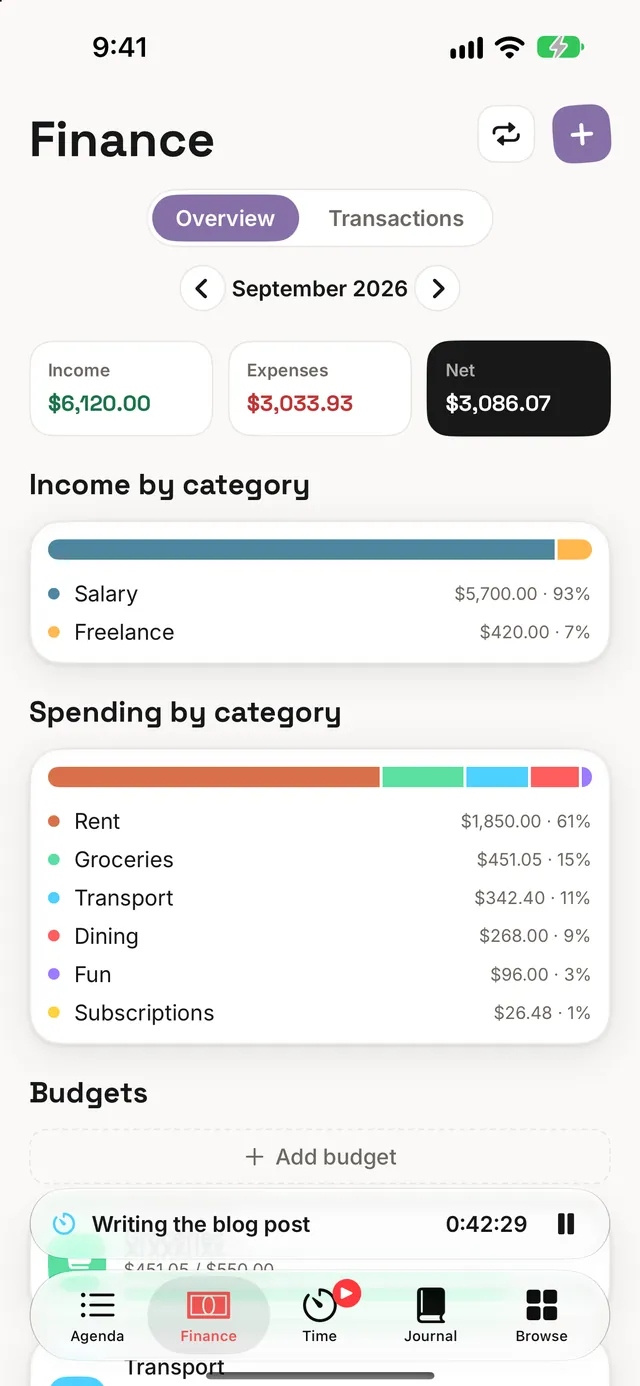
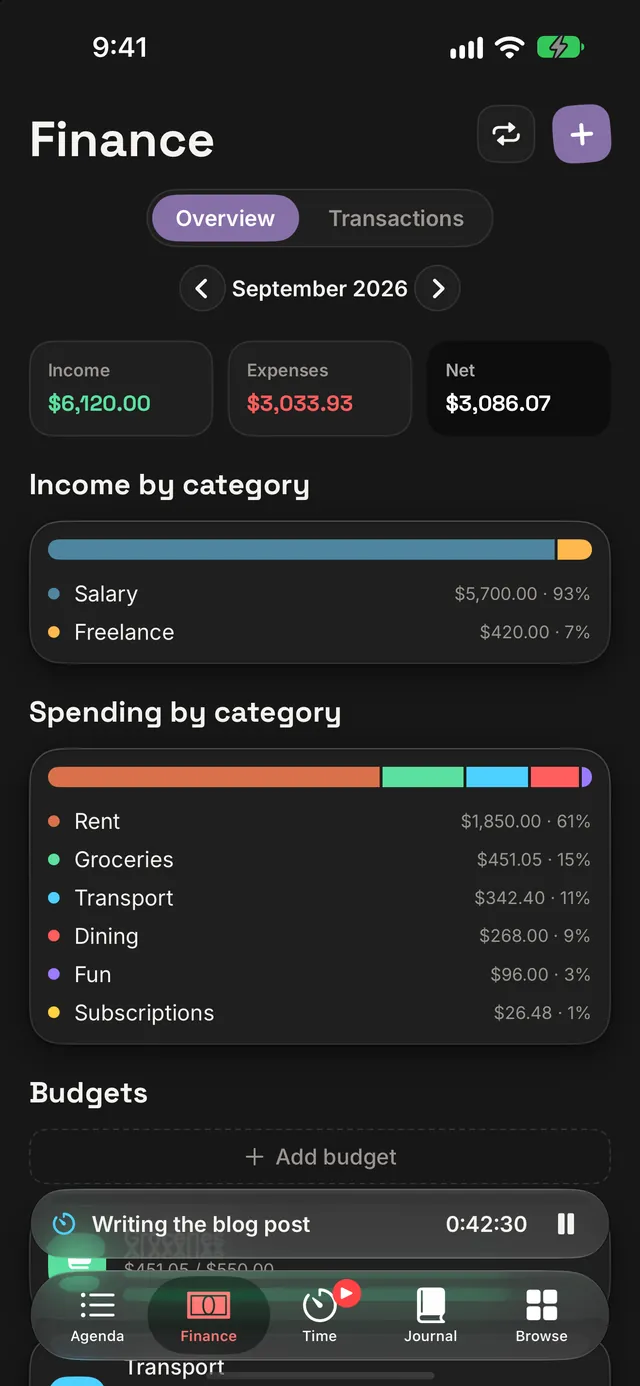
Finance shows one month at a time; step back through earlier months with the arrows. Flip on Insights and the month's overview appears above its transactions:
| In the overview | What it shows | Tier |
|---|---|---|
| Totals | Income, expenses and net for the month | Free |
| Income by category | Where the money came from, largest first, with amounts and percentages | Plus |
| Spending by category | Where it went, the same way | Plus |
| Budgets | Each budget with what's been spent against it | Plus |
The two category charts can be a bar or a pie: tap a chart to switch, or pick the one it starts as in Settings › Finance. Uncategorised money gets its own band, so the parts always add up to the total above them.
Give every regular expense a category, even a broad one. "Uncategorised" is the one slice that can't tell you anything, and the smaller it is, the more the spending chart says.
Money also feeds Reports for any date range and Patterns, which sets spending beside your mood, habits and time. Both are Plus. More on those in Insights & badges.
3Budget one month at a time Plus
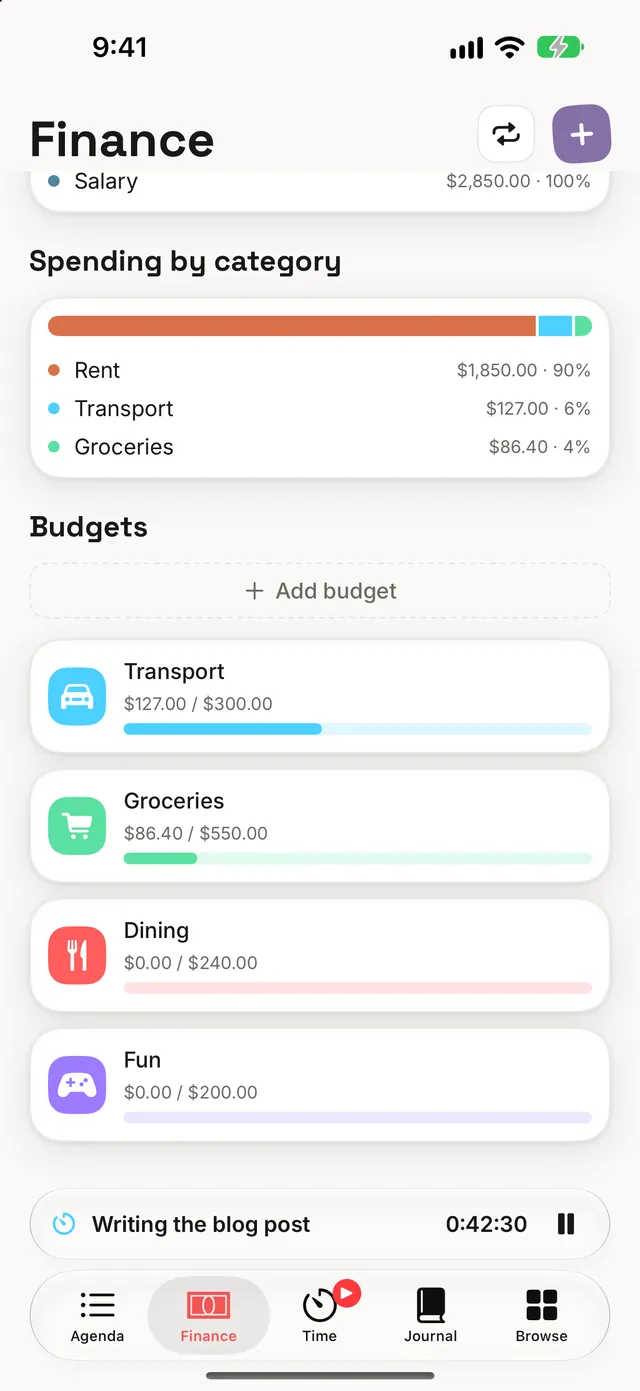
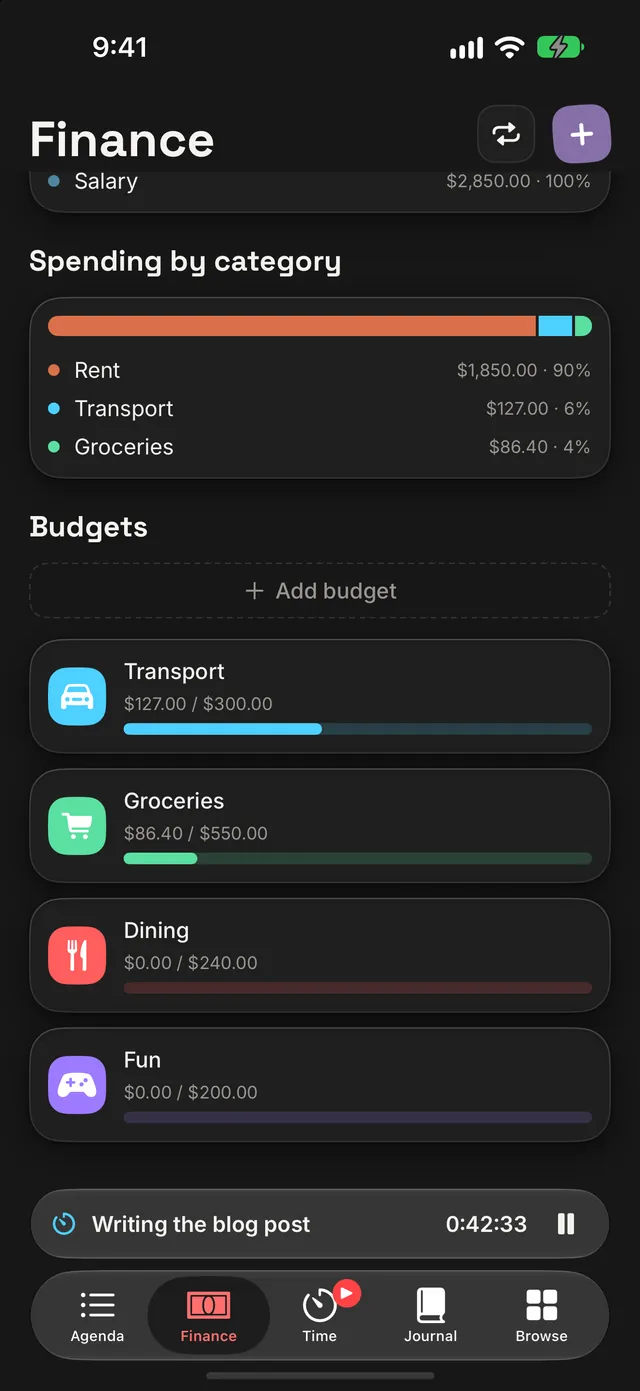
A budget is a monthly limit for one category: groceries, say, at a figure you choose. Add one from + › Budget, and it appears in the overview with what you've spent against it this month. If you go past it, the row tells you by how much.
Each category gets one budget per month, and nothing rolls over. Spending less in March doesn't raise April's limit, and changing March's limit changes March only. So every month is a clean slate, and "am I over?" never depends on history you can't see on the screen.
Because budgets don't carry forward, a new month starts with none. Turn on Set this month's budgets and Dawnlet nudges you on the 1st, but only if the month has no budgets yet. Deleting a budget removes that month's only.
Budget the two or three categories that actually move, not all of them. Rent doesn't need watching; dining out and fun do. A short list you check is worth more than a full one you don't.
4Let the bills repeat Plus
Rent, a salary, a subscription: set it up once as a recurring transaction and it appears in every month it's due, counted in that month's totals and budgets with nothing to type. The schedule works like a repeating todo's:
- Weekly on the days you pick, every week or every few weeks.
- Monthly on chosen dates, like the 1st and the 15th.
- Nth weekday, like the last Friday of the month.
One recurring transaction can have more than one schedule, and each can have an end date. Manage them all from the repeat button at the top of Finance.
Delete an occurrence from the list and Dawnlet asks whether you mean that one or the whole series.
Pause a series rather than deleting it. Deleting is for mistakes; pausing is for things that ended, and it keeps a year of rent or a cancelled gym membership where you can still see it.
5Keep the numbers private
Five notifications cover money. They're all Plus, because they report on budgets and recurring transactions. Recurring transaction due is on from the start; turn the rest on in Settings › Notifications › Finance:
| Notification | When it arrives |
|---|---|
| Recurring transaction due | The morning a recurring transaction lands |
| Budget running low | In the evening, once a budget passes your warning line: 50, 75, 80 or 90% |
| Over budget | In the evening, once a category goes over its limit |
| Monthly money summary | On the 1st: income, spending and net for the month just finished |
| Set this month's budgets | On the 1st, only if the new month has no budgets yet |
However many categories are close or over, you get one notification that names them all, not one each.
Then there's the lock. Turn on Require Face ID for Finance in Settings › Finance (Free, because the privacy of your own money isn't an extra) and:
- Finance opens only after Face ID or Touch ID, and locks again when you leave the app.
- Notifications leave the money out. "Rent, $1,850 due today" becomes "A recurring transaction is due today". Budget alerts drop the category names too, since "Therapy is close to its limit" says as much as the figure would.
- Finance's glance in Browse and today's transactions in Agenda are hidden.
- Search leaves transactions out, Patterns and Look Back leave spending out, and transactions stay out of Spotlight (they're only there in the first place if you opt in).
- Logging an expense with Siri opens Dawnlet and asks you to unlock first, and the spoken reply doesn't repeat the amount.
If anyone else ever picks up your phone, turn the lock on before you turn the money notifications on. The notifications stay useful without the figures, and your Lock Screen stops being a bank statement.
6Earn the money badges
| Badge | How to earn it | Bronze · Silver · Gold |
|---|---|---|
| Money Matters | Log your first transaction | — |
| Bookkeeper | Transactions logged | 25 · 250 · 1,000 |
- Only what's happened counts. A transaction dated in the future waits until its day, and a skipped occurrence never counts.
- Sample transactions never count. The examples a new account starts with are there to explore.
- Badges are permanent. Deleting old transactions never takes one back.
Both badges are free, like every badge, and live in Browse with the rest. See Insights & badges for the full set.
§Under the hood
Money is where Dawnlet is strictest, because a money screen that's slightly wrong is worse than one that's visibly broken.
- Amounts are exact to the cent. An amount travels as an exact decimal from the keypad to your account and back, never through a floating-point number that would turn $19.99 into something a hair away from it.
- The month on screen is the month you see. Flick quickly through months and a slow answer for one can't land under another's name. Results for a month you've moved past are thrown away.
- A failed save says so. With no connection, the editor stays open with what you typed instead of closing as if it worked, and Save stays disabled while a save is running, so a double tap can't log the same coffee twice.
- Repeats are worked out, not copied. A recurring transaction's occurrences are calculated from its schedule each time a month is shown. One is saved as its own record only when you change its amount, edit it or skip it, so a skip is never undone by the next month you open. A carried-over balance runs the same calculation over your whole history.
- Redaction happens before anything is written. With the lock on, amounts are removed when a notification is composed, before it reaches the notification log that syncs with your account, so the full figure is never stored anywhere the lock can't reach.
- Budgets are worked out live. What you've spent against a budget is summed from that month's transactions every time, never stored, so editing an old expense fixes the budget too.
Logging, totals, the Face ID lock and the badges are free. Plus adds budgets, recurring transactions, the category breakdowns, Reports, Patterns and the money notifications.