1Start, pause, stop
You track time against activities: Deep Focus, Meetings, Reading, whatever your days are made of. Add one from + › Activity to track, give it a category and it takes that category's colour and icon (or pick its own). Free accounts can have up to 500 activities.
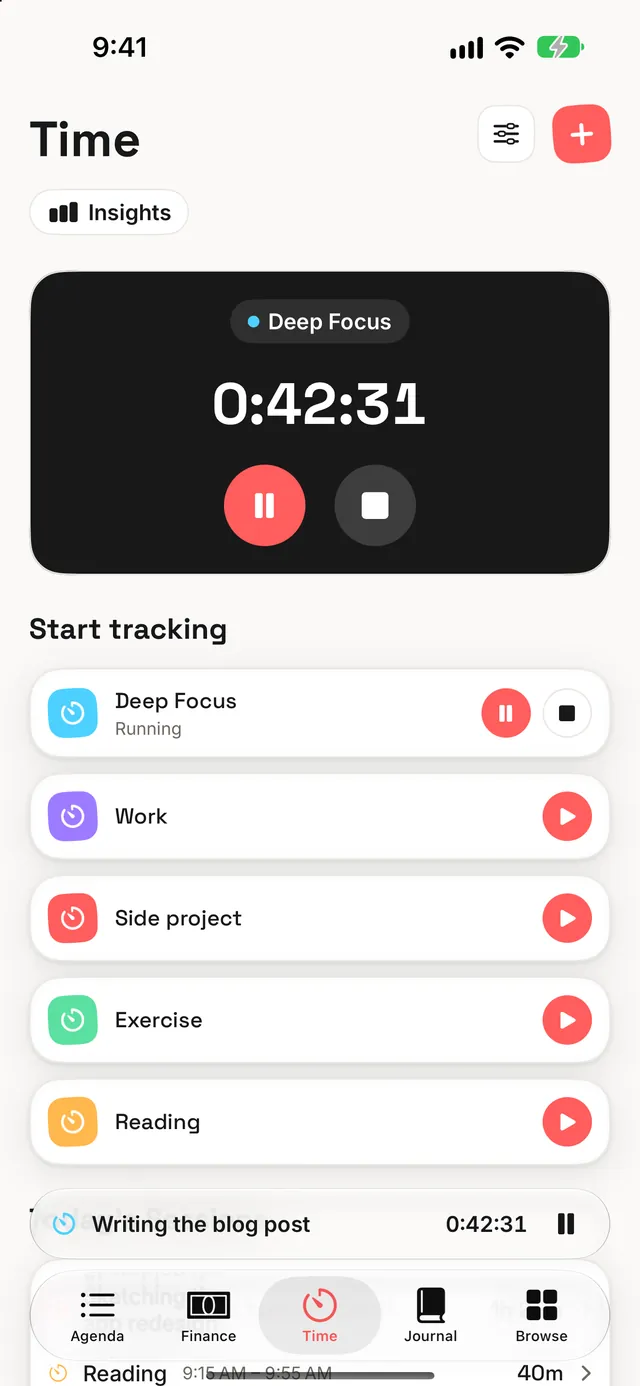
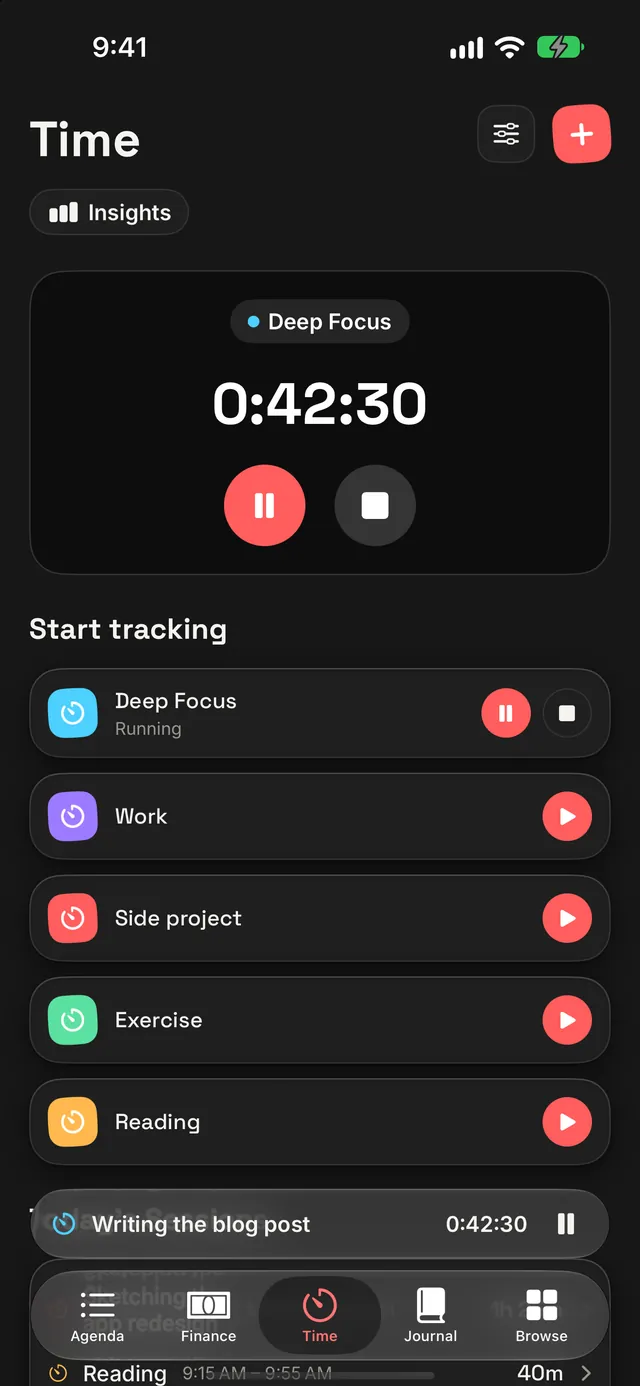
Under Start tracking, tap an activity's play button and the timer starts. The running activity's row swaps its play button for pause and stop, the same controls as the big timer card at the top, so you can use whichever is nearer your thumb.
- Pause as often as you like. Only the time the clock was running counts. A two-hour session with an hour's lunch break in the middle records one hour.
- A paused timer stays paused exactly as you left it, through closing the app or restarting your phone.
- Stop ends the session and files it under today's sessions.
Pause for interruptions, stop when the task is done. A session with a few pauses in it is still one block of work, and that's how it'll read back later.
2Switch in one tap
Only one timer runs at a time. Tap play on a different activity and Dawnlet does both halves at once: the running session is stopped and saved, and the new one starts. There's no moment where both are running, and no forgetting to stop the first.
The same holds across devices. If your phone and your Apple Watch each start a timer within the same second, every screen agrees the most recent one is the one running. And a pause from one device can't bring back a session another device already stopped: whoever stopped it first wins.
Don't stop before you switch. Moving from email to a meeting is one tap on the meeting, and the email session is closed off at the exact second you made it.
3Fix it after the fact
Nobody remembers to start every timer. Tap any session to change its activity, give it its own name (say "Client call" under Meetings), move its start and end, or add notes and tags.
For a block of work you never timed at all, use + › Manual session and log it with a start and an end. If the times don't work, the editor tells you why instead of just greying out Save:
| If | The editor says |
|---|---|
| The end isn't after the start | The session has to end after it starts. |
| The end is still in the future | A logged session can't end in the future. Use the timer for one that's still going. |
Today's sessions also appear in Agenda's Time section. They're the same sessions, so a change made from either place shows up in both.
Deleting a session asks first and can't be undone. If a session is wrong rather than unwanted, edit it instead.
4Run the timer from anywhere
The timer reaches well past the Time tab, and every one of these controls the same session:
| Where | What it does |
|---|---|
| Lock Screen and Dynamic Island | A Live Activity with the activity's name, the elapsed time, and Pause and Stop buttons that work without opening the app |
| Above the tab bar | The running session, with pause, on every tab; tap it to open Time |
| Control Center | Timer stops the running session, or starts your last activity again. Start Activity is set to one activity and starts or stops just that one |
| Siri and Shortcuts | "Start tracking Deep Focus in Dawnlet", "Pause my Dawnlet timer", "Stop my Dawnlet timer" |
| Home Screen and StandBy | The Timer widget shows what's running and today's total; Timer Clock is the running timer as a big clock for StandBy |
| iPad keyboard | ⌘T pauses or resumes, ⇧⌘T stops |
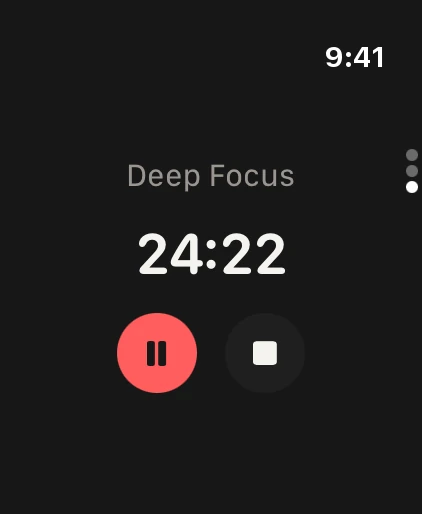
| Apple Watch | Its own timer screen: start an activity, pause, stop |
Swipe the Live Activity away and it stays away for that session. Starting a new one brings it back.
Add the Start Activity control for the one thing you track most. Deep Focus becomes a single swipe and tap from anywhere, and tapping it again stops it.
5Catch a forgotten timer
Four notifications look after your time. Turn them on in Settings › Notifications › Time tracking:
| Notification | When it arrives | Tier |
|---|---|---|
| Timer still running | Once a timer has run for 2 hours, or the 1, 3, 4 or 8 you choose | Free |
| Timer left paused | Once a timer has sat paused for 30 minutes, or 15, 60 or 120 | Free |
| Daily time goal | In the evening, if today's tracked time is under the goal you set (30 minutes to 8 hours) | Plus |
| Weekly time recap | On the last evening of your week, with how much you tracked | Plus |
The first two are set the moment you start or pause, from wherever you did it (the Watch, Siri, the Lock Screen), and called off when you pause, resume, stop or switch. During your quiet hours they're dropped rather than delayed, because a late "still running?" is no use.
Turn on Timer still running and set it a little past your longest normal session. It stays silent on ordinary days and saves the evening you'd otherwise log eleven hours of "Meetings".
6Read the month Plus
Turn on Insights and Time switches to a month view:
- A chart of hours tracked each day.
- By activity: where the month went, largest first.
- The month's total, your average on a day you tracked, your busiest day and how many days you tracked.
- Every session in the month, grouped by day, each one editable.
Only finished, banked time counts: a session still running stays out of the chart until it stops, so the bars don't creep up while you watch.
Time also feeds Reports for any date range, Patterns, which sets it beside your mood, habits and spending, and Look Back. All three are Plus.
Look at By activity at the end of each month and ask whether the order matches what you'd say matters. If it doesn't, that's the month's most useful number.
7Earn the time badges
| Badge | How to earn it | Bronze · Silver · Gold |
|---|---|---|
| On the Clock | Finish your first tracked session | — |
| Time Well Spent | Hours tracked, across every activity | 10 · 100 · 500 hours |
- Finished sessions count. A running timer joins the total when you stop it.
- Paused time never counts. Hours are your banked running time, not the span from start to end.
- Sample sessions never count, and badges are permanent: deleting a session never takes one back.
All badges are free. See Insights & badges for the rest.
§Under the hood
A stopwatch is easy until someone pauses it. Subtracting a start time from now breaks on the first pause, and keeping a "total paused" figure breaks on the second. So a Dawnlet session stores just two things: the time already banked from finished stretches, and when the current stretch began, if one is running.
| State | Elapsed time is |
|---|---|
| Running | Banked time + (now − when this stretch began) |
| Paused | Banked time |
| Stopped | Banked time, now final |
- Pausing banks the stretch. Resuming starts a new one. Any number of pauses, across relaunches and restarts, comes down to the same sum, and a paused timer needs nothing ticking anywhere.
- One clock drives the screen. The timer card, the running row and every live duration read the same moment, so two numbers on screen can't drift apart.
- Every surface takes the same path. A tap, a keyboard shortcut, Siri, the Lock Screen and the Watch all change the session the same way, then refresh the timer notifications and the Live Activity from the session as it now stands. Updates are applied one at a time, so two arriving together can't start two Live Activities.
- Switching is a single step. Stopping the old session and starting the new one happen together, so there's never a moment with two running and the day's total double-counted.
Tracking, editing, the Live Activity, widgets, controls, Siri, the Watch, the two timer notifications and the badges are free, with up to 500 activities. Plus adds the month's Insights, Reports, Patterns, Look Back, the daily goal and the weekly recap.