1Just ask Siri
Dawnlet comes with ten ready-made shortcuts, the most an app can offer. They need no setup: say the phrase, or find the same action in the Shortcuts app, in Spotlight or on the Action button.
| Say | What happens |
|---|---|
| "What's my day in Dawnlet" | Today's events, the todos due today or overdue, and the habits you haven't done yet, read out and shown as a card. It only reads, never changes anything. |
| "Start a timer in Dawnlet" "Track Deep Focus with Dawnlet" | Starts the timer for any of your activities. |
| "Pause my Dawnlet timer" "Resume my Dawnlet timer" | Pauses the running timer, or picks a paused one back up. |
| "Stop my Dawnlet timer" | Stops the timer and logs the session. |
| "Add a todo in Dawnlet" "Add a Work todo in Dawnlet" | Asks for a title and adds a todo, due today unless you pick another day. |
| "Check off a habit in Dawnlet" "Check off Read in Dawnlet" | Ticks off a habit for today. The suggestions are today's habits that aren't done yet. |
| "Log my mood in Dawnlet" "Log a great mood in Dawnlet" | Saves today's mood: rough, low, okay, good or great. |
| "Log an expense in Dawnlet" "Log a Groceries expense in Dawnlet" | Asks how much you spent, with an optional note, category and tags. |
| "Quick add in Dawnlet" | Opens Agenda's add menu, ready to go. |
| "Open Habits in Dawnlet" "Show my Journal in Dawnlet" | Opens any tab or module screen. It can only take you somewhere, never change anything. |
The category you name has to be one of yours, and it's the right kind: a todo is offered your todo categories, an expense your Finance ones. In the Shortcuts app you'll also find Pause Timer and Resume Timer as separate actions, and Look Back at My Week or Month Plus, which reads you a short written look back at the week or month so far. It has no phrase of its own (all ten slots are taken), but Siri will run any shortcut you build from it by that shortcut's name.
Make "What's my day in Dawnlet" the first thing you say in the morning, or put it on the Action button. It's the whole of Agenda's today in one sentence.
Everything here is Free apart from Look Back. The free plan's 500-todo limit still applies to "Add a todo", exactly as it does in the app, and every action checks you're signed in and says so if you're not, rather than appearing to work and saving nothing.
If you've put Finance behind Face ID, "log an expense" never saves silently. Siri asks to open Dawnlet, you unlock with Face ID, Touch ID or your passcode, and only then is the amount saved. The spoken confirmation leaves the amount out.
2Put a control one swipe away
Four controls, for Control Center, the Lock Screen or the Action button. All of them are Free.
| Control | What it does |
|---|---|
| Timer | A switch that's on while a session is running. Turning it on resumes a paused session, or restarts the activity you last started on this phone. Turning it off stops the timer. |
| Start Activity | A switch for one activity you choose when you add it. Turning it on starts that activity (stopping whatever else was running), turning it off stops it. |
| Check Off Habit | A switch for one habit you choose. On checks it off for today, off un-checks it. |
| Quick Add | A button that opens Agenda's add menu. |
Add Start Activity more than once, one for each thing you track most, like Deep Focus and Reading. Switching between them is then a single tap each, no app and no list.
If the activity or habit a control points at has been deleted, or the habit has ended, the control opens the right screen in the app instead of guessing.
3Pick your widgets
Eight Home Screen widgets, in small and medium sizes. Six are free:
| Widget | Size | What it shows | Tier |
|---|---|---|---|
| Today | Small | Today's todos: how many are done, and what's next | Free |
| Habits today | Small | Your habits' week as dots, and your longest running streak | Free |
| Timer | Small | Whether a session is running, and today's tracked time | Free |
| Timer Clock | Small | The running timer as a big ticking clock, made for StandBy | Free |
| Today's agenda | Medium | The next few things today across events, todos and habits. Tap a row to open it. | Free |
| Habit week | Medium | Up to four habits as rows, the seven days of your week as columns | Free |
| Month in numbers | Medium | Spending by category, and budget progress | Plus |
| On this day | Medium | Something you wrote on this date in an earlier year | Plus |
A widget shows what the app last saved for it, and tapping it opens the right screen. It never changes anything itself. There are deliberately no Lock Screen widgets, so your todos, journal and spending never show on a phone someone else picks up. If Finance is behind Face ID, Month in numbers doesn't show your amounts either.
Charge your iPhone on its side with Timer Clock in StandBy, and a focus session becomes a desk clock you can read from across the room.
4Keep the timer on your Lock Screen
A running timer appears on the Lock Screen and in the Dynamic Island with the activity's name, symbol and colour, the elapsed time, and Pause/Resume and Stop buttons. The clock ticks on its own while it runs and freezes while it's paused.
- Switching activities updates the same Live Activity rather than ending one and starting another. Every change to the timer reaches it, wherever you made it: the Time tab, Agenda, Siri, a control or a keyboard shortcut.
- Started on the Watch? With Dawnlet open, the phone picks it up straight away. With Dawnlet in the background, a new Live Activity appears the next time you open the app.
- Swipe it away and Dawnlet doesn't bring it back for that session. The next session gets a new one.
VoiceOver reads the name and state together, such as "Deep focus, running", and names each button.
5Tick it off on your wrist
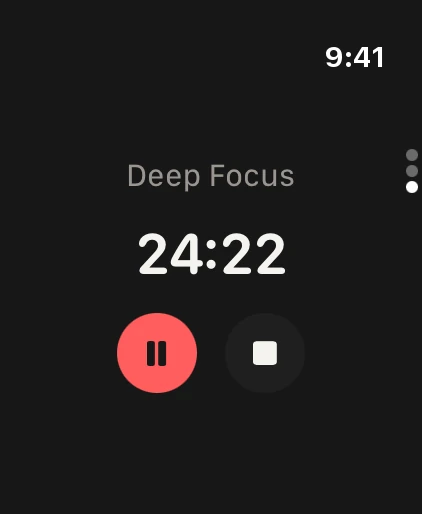
The Apple Watch app opens on four tiles, each with a one-line glance so most visits end right there:
Two complications, Habits today and Todos today, fit the circular, inline and corner spots on a watch face. They show a count and nothing else, never a title, because a watch face is visible to whoever is standing next to you.
Tick off an overdue todo on the Watch and it's recorded on the day it was due, with no question asked. If you want it moved to today instead, do it from the phone, which asks.
The Watch signs in to your account on its own and talks to it directly, so it keeps working when the phone isn't nearby. Signing out on the phone signs the Watch out too. Apple Calendar events don't appear on the Watch, since Dawnlet reads those on the phone and never stores them.
6Find anything from search
Your people, todos, habits, events, places, books, movies, meals, gratitudes and tracked activities show up in iPhone and iPad search, each as a title and a short line. Tap a result and that item opens in its editor.
| Question | Answer |
|---|---|
| What's off by default | Journal entries, and your most recent 5,000 transactions. Switch each on in Settings → Apple Integrations → Spotlight, per device. |
| Finance locked? | While Finance is behind Face ID, transactions stay out of Spotlight whatever the switch says. |
| Deleted something? | It leaves Spotlight once its Undo window has passed. |
| Signing out | Empties the index and turns both switches off again, so the next person starts from nothing. |
If you're halfway through editing something when you tap a result, Dawnlet never throws your typing away: the result opens once you've saved or cancelled.
7Pick up on your other device
Whatever screen you're on, or the item you have open in its editor, is offered to your other iPhone or iPad signed in to the same Apple Account. Tap it there and you're in the same place. Only the name of the screen, or the kind of item and its ID, travels between devices. The other device then fetches the item from your account itself, so its title and contents never go along for the ride.
9Drive it from an iPad keyboard
With a keyboard attached, hold ⌘ to see every shortcut. The ones worth learning first: ⌘N for Quick Add, ⌘F for search, ⌘1 to ⌘5 to switch tabs, ⌘T to pause or resume the timer and ⇧⌘T to stop it, and ⌘Return to save an editor. The full list is on the accessibility page.
§Under the hood
Everything on this page follows one rule: only the app ever writes. Widgets, controls, the Live Activity and the share sheet are small extensions the system runs outside the app, and your sign-in lives where only the app can reach it. Rather than copy your session somewhere less protected, Dawnlet keeps every change inside the app.
| Surface | How a change gets made |
|---|---|
| Siri, Shortcuts, Action button | The system starts Dawnlet quietly and the action runs there, signed in |
| Live Activity and controls | Their buttons are actions the system hands to the app to perform |
| Widgets and complications | They draw what the app saved for them, and a tap opens the app |
| Share sheet | It leaves a note that the app turns into an item |
- Same change, same consequences. A habit checked off by Siri can still earn a badge and quiet tonight's notification, and a timer stopped from the Lock Screen updates the Time tab and the widgets alike. See Under the hood for why.
- Plus widgets lock themselves on time. The app saves when your access ends alongside the widget data, so a lapsed subscription locks the Plus widgets at the right moment without the app being opened.
- No new server, push service or permission. Spotlight and Handoff are on-device system features. The privacy policy says what each keeps.