1Read the day, module by module
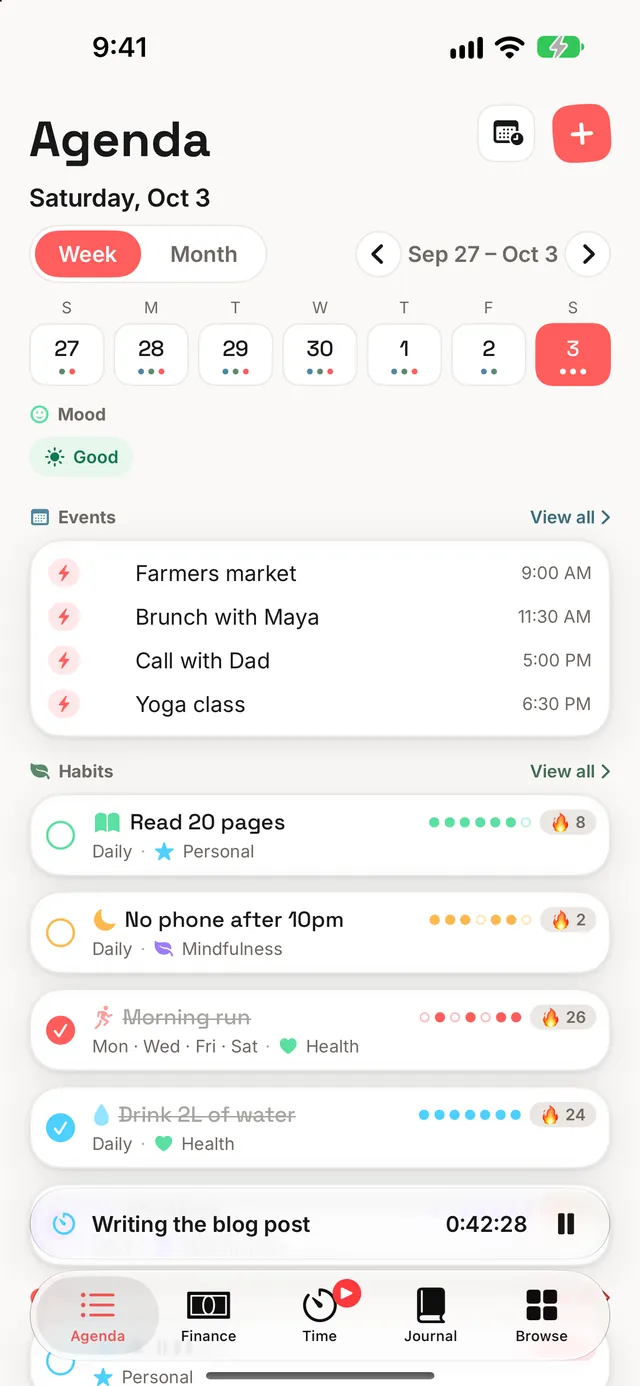
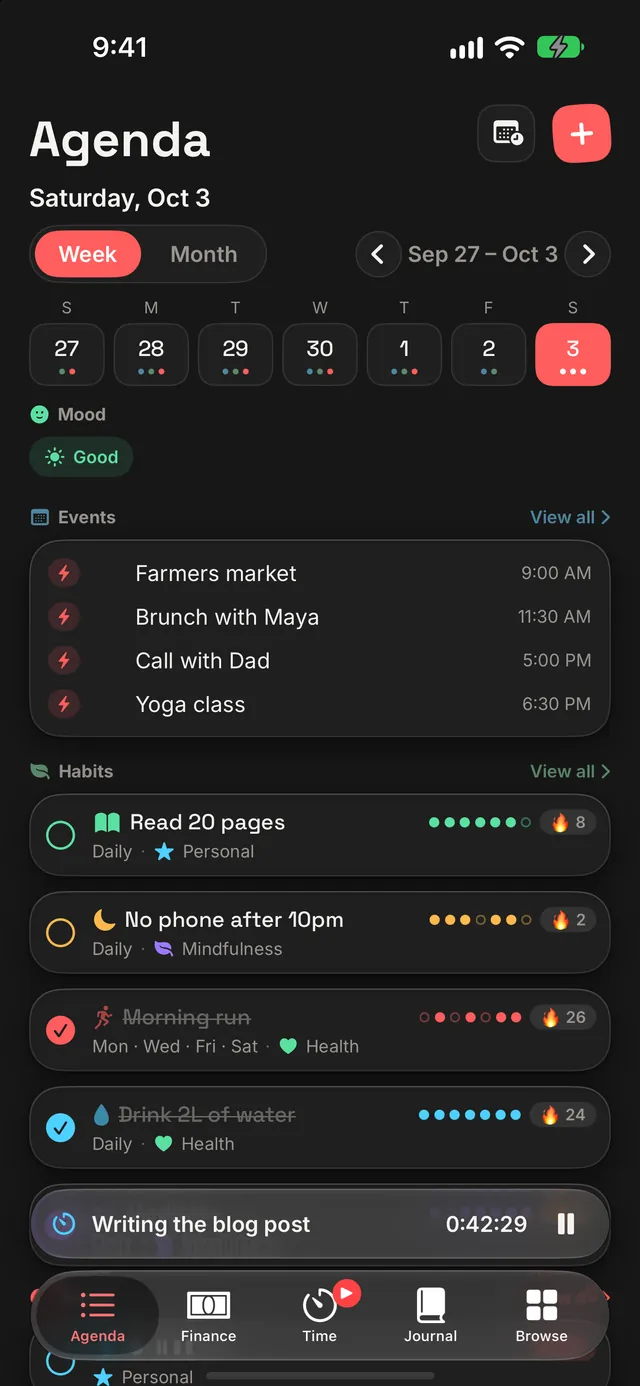
Under the grid, Agenda shows one day: today when you open it, or whichever day you tap. That day is broken down into a section per module, and each section holds both what's still to do and what you already did, open items first. So you read a day the way you think about it ("what about money today?"), not as one long list of done and not done.
| Section | What it shows for the day |
|---|---|
| Events | Your Dawnlet events, plus Apple Calendar events if you've let Dawnlet read them |
| Habits | Every habit due that day, with its week strip and streak |
| Todos | Todos due that day, and on today, anything overdue too |
| Places · Books | Trips and reads that cover the day, with a "Day 3 of 8" pill |
| Movies | Films planned for the day, or watched on it |
| Finance | The day's transactions and their net total |
| Time | The sessions you tracked |
| Meals · Gratitudes | What you logged |
| Journal Entries | Every entry written that day, newest first |
Each section header ends in View all, which opens that module's own screen. A section with nothing in it still shows, with a card that adds the first item, so every module is always one tap away. The rows are the same ones each module's own screen uses, with the same swipes and long-press menu. The one difference is a plain tap: on Agenda, tapping a habit, todo, book, movie or place checks it off.
Wandered off to another day? The date above the grid always says which day you're reading, and a Today button appears beside it to bring you straight back.
A trip or a book that runs for several days shows on every one of them. You can only mark it visited or read on its last day, so a week in Kyoto can't be ticked off on day three.
2Page through weeks and months
The grid at the top switches between Week and Month, with arrows to page backwards and forwards. Paging never moves "today": you can look three months ahead and the day below stays where you left it until you tap a new one. Switching between Week and Month jumps back to today.
Under each date sit up to three small coloured dots, one per module with something on that day (events, habits, todos, trips, books and films), done or not. They follow the order you've given Agenda's sections and use each module's own colour, so the dots, the section headers and the rows all speak the same colour language. With Differentiate Without Colour turned on, the dots become each module's icon.
Three settings in Settings → Agenda shape the grid:
- Agenda opens on the week or the month grid.
- Week starts on Sunday or Monday. Your habits' week strips start on the same day.
- Under each day shows the dots, or the mood you checked in with, so a month reads as a run of good and rough days instead.
On iPad
When the window is wide enough, Agenda splits in two: the month grid on the left with Plan my week and Plan my month underneath it, and the day's sections on the right. It goes by the window's width rather than how you hold the iPad, so a large iPad in portrait can split too, and a narrow Split View window keeps the single column. In the split, every day shows its mood and its dots together, the one place there's room for both. The two planning flows use the extra room as well, with the week or the month's steps down the left beside the step you're on.
3Arrange it the way you think
Open Settings → Agenda → Reorder Agenda Sections. Drag sections into the order you want, and move any you don't use to Hidden. A hidden section simply stays out of the day; nothing in it is deleted, and you can bring it back whenever you like. Your order is saved to your account, so it's the same on every device.
Every section can be moved or hidden except Events, which is always shown at the top. A day starts with what's happening at a fixed time.
Put the sections you act on near the top and the ones you log after the fact (meals, gratitudes, journal) lower down. Not tracking money or time in Dawnlet? Hide those sections and your day gets shorter. If you'd rather keep a day's spending off the screen, hiding Finance is the way to do it, and turning on Face ID for Finance also masks it on Agenda.
4Check in how the day felt
The first thing in the day's breakdown is Mood. Tap it and pick one of five, Great, Good, Okay, Low or Rough, or clear it again. Today asks "How's today?" and a past day asks "How was it?". Future days don't offer it, because a mood is about a day you've lived. It's the same daily mood as the Journal tab's check-in, so setting it in either place sets it in both.
Moods earn badges of their own, all free:
| Badge | How to earn it | Bronze · Silver · Gold |
|---|---|---|
| How Are You? | Check in your mood once | — |
| In Touch | Mood check-ins in total | 30 · 100 · 365 |
| Weather Watcher | Check in every day, your best run | 7 · 30 · 100 days |
| Full House | A mood, a journal entry and a gratitude on the same day | — |
Set Under each day to the mood. After a few weeks the month grid becomes a mood calendar, and you can tap any day to see what was on it.
5Add anything from one menu
The + at the top of Agenda opens Add to Agenda, twelve tiles in three rows: the things you schedule (Event, Todo, Habit, Transaction), the things you log after the fact (Journal, Gratitude, Meal, Time), and your lists (Place, Book, Movie, Person). A new todo or event starts on whichever day you have selected, so tap Thursday first and "+" adds to Thursday.
You don't need to be in the app to reach the same menu:
- Siri and Shortcuts: "Quick add in Dawnlet" opens it, and "What's my day in Dawnlet" reads out today's events, the todos due or overdue and the habits still open, without opening the app.
- Control Center: add the Quick Add control.
- iPad keyboard: ⌘N opens it too.
6Catch up and reschedule
Tap any day in the grid and you can work on it just as you would today. Check off a habit or a todo on a day other than today and Dawnlet asks which date to record it on: the day it was due, or today. Your history then says when something really happened, and a habit's streak recounts itself (see protecting the streak).
Missed a few days of ticking? Go back through them in the grid rather than ticking everything today. Choosing the original date keeps your streaks and your history honest.
7Plan the week or the month Plus
The planning button beside "+" opens Plan Ahead with two guided flows. On the free plan you can still plan any day yourself, straight in Agenda; the tiles show a lock and lead to Dawnlet Plus.
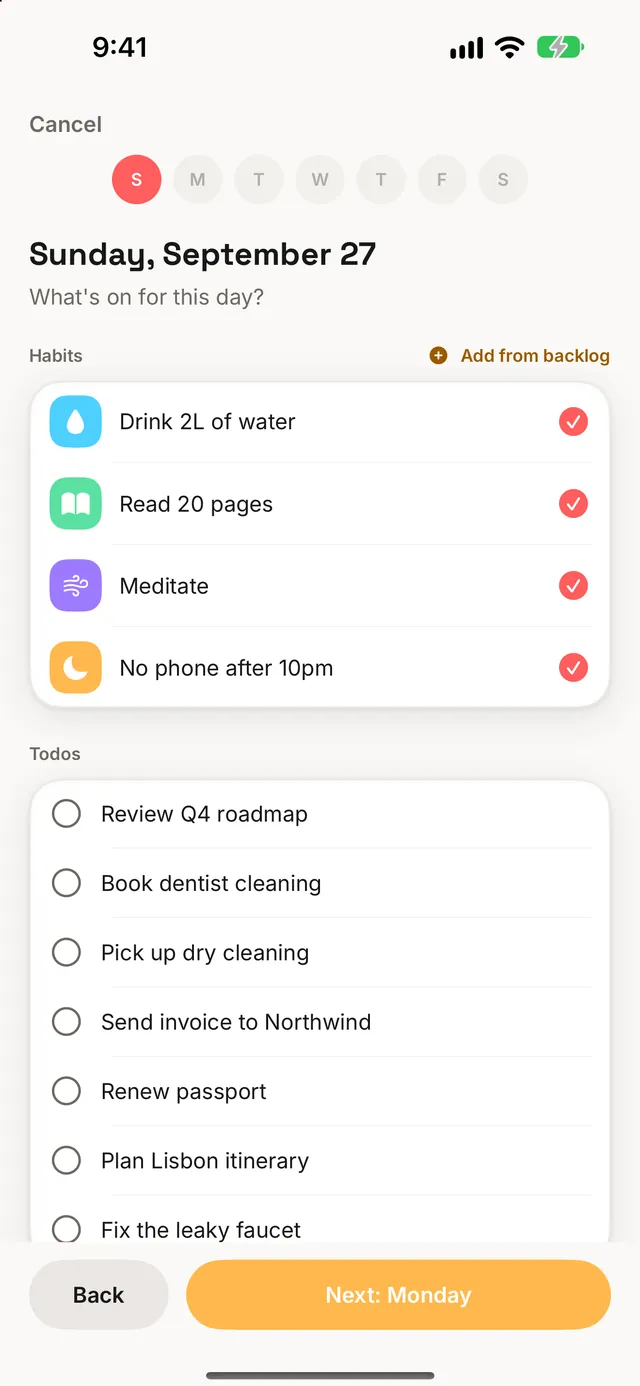
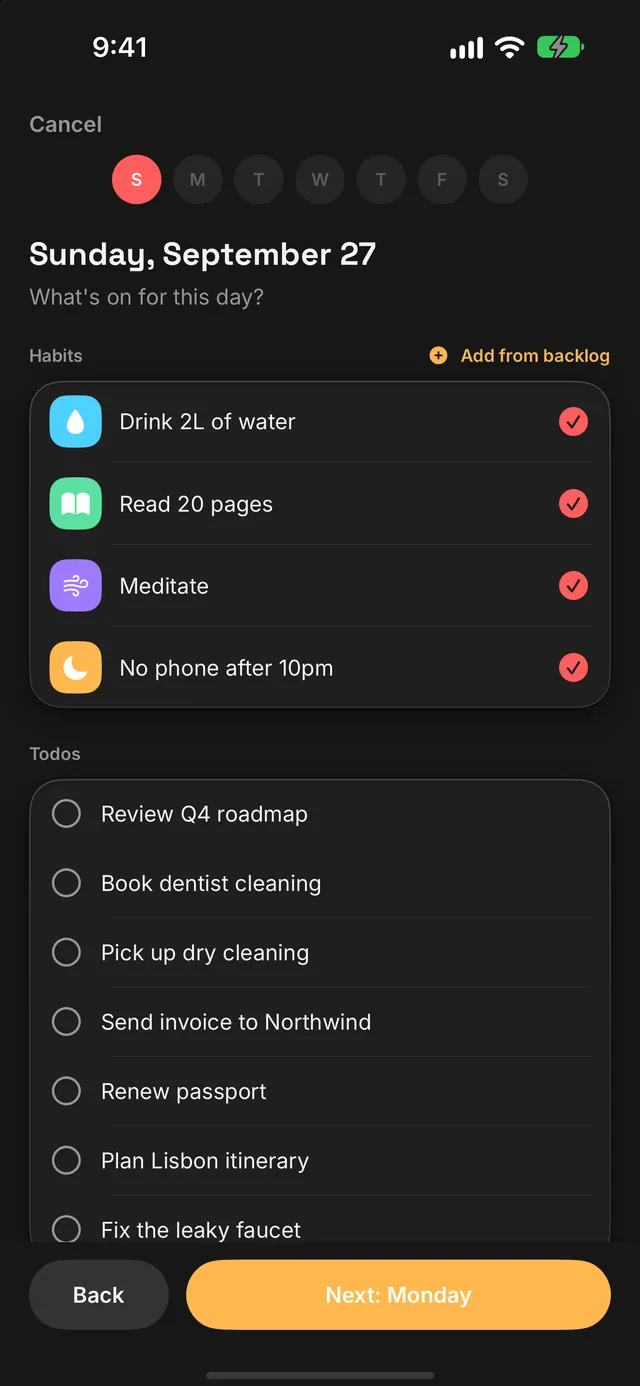
| Plan my week | Plan my month | |
|---|---|---|
| First | Pick the week (this one or later), with a Look Back at the week before | Pick the month (this one or later), with a Look Back at the month before |
| Then | One screen per day: that day's habits, todos from your backlog to give it, movies and books, and a place | Set each spending category's budget, next to last month's actual spend |
| Choose which habits carry on into the month | ||
| Pull backlog todos into the month | ||
| Earmark films to watch and books to read, and a place to plan toward | ||
| Last | A short celebration with what you planned | The same, for the month |
- Ticking a todo for a day gives it that due date, and unticking one that was due that day takes its date away again. Repeating todos never appear; they follow their own schedule.
- Books and places can span days. Tap each day you expect to be reading or away, and the whole stretch is planned. A film belongs to one evening.
- Turning a habit off for the month doesn't delete it. It gets an end date the day before the month starts, so its history stays.
- Picking a place books nothing. It's a reminder to plan toward it.
- Every step saves as you go. Close the app halfway and nothing you chose is lost.
Two notifications, both off until you turn them on, catch the moment planning is easiest: Plan my week the evening before a week you haven't planned, and Plan my month on the last day of a month whose next month isn't planned. Each goes quiet as soon as you've planned it.
Plan on Sunday evening, not Monday morning. Ten minutes with Plan my week puts every backlog todo on a real day, so the week's Agenda is already filled in when it starts.
§Under the hood
Agenda used to be three tabs: a planner, a calendar and a today view, three ways of looking at the same things. They became one screen, and the day was split by module rather than into "planned" and "completed", because that's how people think about a day and it gives every module a door to its own screen.
- Every module's own row. Agenda draws each item with the same row its module screen uses, swipes and menu included, so skipping or restoring behaves identically in both places. That's also why Agenda is a real list rather than a free-form scroll: system swipe actions only work inside one.
- Loads what's on screen. Events are fetched for a window around the day you're on and widen as you page. Coming back to the tab only refetches if something changed elsewhere, a minute has passed, or the app was in the background. Pull down to refresh at any time.
- Honest about saving. A tick shows the moment you tap and saves in the background. If the save fails, the tick is taken back and a short message says so. A section still loading shows a placeholder rather than "nothing today", and a failed load keeps what was already showing. With no connection at all, Agenda opens on the copy it kept from last time.
- One rule in the database. You can read three books at once, but you can't be in two places at once, so overlapping trips are refused by the server itself, except that one trip may end the day the next begins. The app names the clashing trip before it gets that far.
- Accessible by design. Each day in the grid reads as a sentence, such as "Saturday, October 3, Today, 2 events, 3 todos, Mood: Good", and section headers are headings, so VoiceOver's rotor jumps from module to module. More on the accessibility page.
Agenda and everything on it is free. Plus adds Plan my week and Plan my month, plus the repeating todos and events that fill a day by themselves.